Games corner
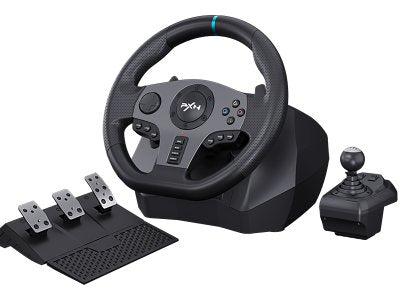
PXN V9 Gaming Racing Wheel with Pedals & Shifter, 270°/900° Adjustable Steering, Dual-Motor Vibration Feedback, Driving Simulator Wheel for PC, PS4, PS3, Xbox One, Xbox Series X/S & Nintendo Switch
PXN V9 Gaming Racing Wheel with Pedals & Shifter, 270°/900° Adjustable Steering, Dual-Motor Vibration Feedback, Driving Simulator Wheel for PC, PS4, PS3, Xbox One, Xbox Series X/S & Nintendo Switch
Regular price
59.900 BHD
Regular price
75.000 BHD
Sale price
59.900 BHD
Unit price
per
Tax included.
Couldn't load pickup availability
Product description
- NOTE:All customers pay attention to before use
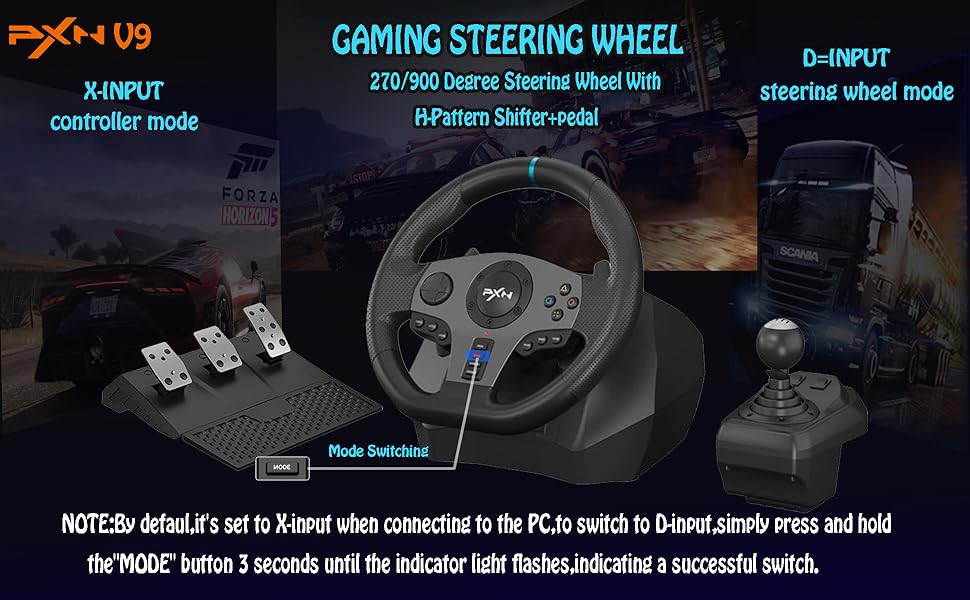
- 1. PXN-V9 racing wheel playing games on PC, if the clutch and shift lever do not work, it may be that the game mode is incorrect. Note: The steering wheel defaults to X-input mode on PC. When using the shift lever on PC, you need to press and hold the MODE key for 3 seconds to switch to "D-Input" mode, and then set the shift function in the game. )
- 2. When playing games on PC, if the clutch and shift lever do not work, it may be that the game does not support the gear lever mode. The game uses an automatic transmission design and is controlled only by the throttle.
- 3.PXN-V9 racing wheel button setting: You need to set the button inside the game, save, if you are set in the steering wheel, you can't save it.
- 4. PXN-V9 racing wheel Connect PS3 / PS4 does not support hanging mode.
- 5. For PS4, the voice interaction of the headset is inserted into
- 6. PXN-V9 racing wheel steering does not work, It may be a problem with the game steering setting, and the left joystick is not selected;
- 7. D-input mode: Recommended games: "Euro Truck Simulator 2", "Assetto Corsa", "F1" series

- PS4/Xbox One, Xbox Series X/S Connection method
- 1. you need to use PS4 Xbox One, Xbox Series X/S the original gamepad to guide,
- 2. Before booting, make sure that the host and the original handle are off,
- 3. Use the microusb cable with data transmission function to connect the steering wheel and the original handle,
- 4. Connect the steering wheel to the host. After the original handle is connected to the steering wheel, turn on the host.
- 5. After booting, press the HMOE button on the steering wheel. Can be manipulated to guide success.
- 6.If it fails to control, please replace the data cable or restart
- 7. NOTE: PXN-V9 does not support Apple Desktop/Laptop/PS5 first generation host)


- 270 Degree Steering Wheel Fit for competing racing games ( Not support the shifter )
- 270 Degree suitable for racing game Like: Forza Horizon 4, DiRT Rally, Test Drive: unlimited, Need for Speed, etc.
- Q:How to adjust the steering degree of the steering wheel? 270°/900°?
- A:There is a setting button on the racing wheel, just adjust to the corresponding degree. If it can be set in the game, please set it to the same degree as the racing wheel.
- Q:Is it applicable to PS4? What should I pay attention to?
- A:Yes, but the official controller must be used to connect. If a third-party controller is used, steering wheel will not work.
- Q:Is it a force feedback wheel? Can I feel resistance?
- A:No, it is a vibration feedback wheel, without force feedback function, no resistance.
- Q:How to obtain the driver?
- A:You can scan the QR c0de in the user manual with your mobile phone. After downloading, turn on the Bluetooth and open the APP, it will automatically connect to the racing wheel and you can adjust it. Or download the corresponding driver from the website: .e-pxn.com/support
- Q:Can I plug in headphones while in use?
- A:For PS4, headset and microphone functions can be implemented. Please note: When using with , if you use Shifter, the headset and microphone functions may be restricted.

- Connect with PC
- tep1. Please connect the pedals and shifter according to user needs before using.Step2. Plug the USB interface of the steering wheel into PC. Step3. Working mode is default to X-input, after successful connection, the red indicator will stay on. Step4. You can shift working mode by pressing the MODE button.
- ow to shift Working Mode?
- old MODE button for 3 seconds X- input←→D- input Press MODE button for 3 seconds on steering wheel until red indicator flashes. Then, you can shift working mode to D-input.X-input Mode Recommended game are Need for Speed 13, Dirty2/3, Ridge Racing etc. D-input Mode Recommended game are Need for Speed 1-12,Euro Truck Simulator 2 etc.
- Connect with PS3
- tep1 Please connect the pedals and shifter according to user needs before using.
- tep2 Plug the USB interface of the steering wheel into PS3, then power on PS3 console.
- tep3 The red indicator will remain on when connected successfully. Then power on console and launch game to play or conduct relevant function setting on PS3.
- Connect with N-SWITCH
- nter homepage of SWITCH, select Setting--Controllers and Sensors --select Pro Controller Wired Connection. Please make sure that the option state is ON. Connect with SWITCH console
- tep1 Please connect the pedals and shifter according to user needs before using.Step2 Please plug the Type-C OTG into SWITCH console.
- tep3 Connect the steering wheel USB interface with Type-C adapter. Step4 The red indicator on the steering wheel will remain on when connected successfully. ( Note: The Type-C OTG is not included )
- Connect with SWITCH Dock
- tep1 Please connect the pedals and shifter according to user needs before using. Step2 Place the SWITCH console into the dock to ensure successful connection.
- tep3 Plug the USB interface of steering wheel into SWITCH dock and power on SWITCH console. Step4 The red indicator on the steering wheel will remain on when connected successfullly

- 900 Degree Steering Wheel Fit for simulator driving games ( Support the shifter ) 900 degree suitable for driving games, like Euro Truck Simulator 2, CTS, Fern Bus Simulator, American Truck Simulator, etc.
- Q: Does V9 support the gear lever to play games on the console side (PS4)?
- A: First of all, the V9 steering wheel has two modes on the host side ( PS4), namely the handle mode and the steering wheel mode. The handle mode connection: only the V9 needs to be connected to the original handle, and the steering wheel is connected to the PS4 host. It can be operated and used without connecting the gear lever.
- Q: After connecting the PS4 console, the steering wheel cannot control the game page and cannot be manipulated.
- A: Check whether the gear lever is connected, remove the gear lever interface, restart, match the handle mode,
- Q: So how to judge what mode the steering wheel is on the host side?
- A: 1. After connecting the PS4 console (without connecting the gear lever), the steering wheel is on the main page of the console. Turn left and right to operate the interface left and right. This is the handle mode.
- 2. After connecting the PS4 console (the gear lever needs to be connected), after the console is successfully connected, there is no response when the steering wheel is turned left and right on the console interface (only the cross keys can be controlled), you need to enter the game after Turn the steering wheel to restore.

- Package Includes: 1 x Gaming Steering Wheel 1 x Pedal 1 x Gear lever 1 x Manual
- 1.Specification:
- 2.Compatible: for PC, PS4, Xbox One, Xbox Series X/S,for N-Switch
- 3.Gear Driving: Manual Transmission 4.Connection: USB Cable
- 5.Operating current: 80mA under normal conditions; Less than 150mA when vibrating; Less than 500mA with guide handle
- 6.Rotation angles: 270° and 900° 7.Product weight: 7.5 kg
- Summary of customer questions
- 1. Problem: The clutch and gear lever do not work
- Answer: It may be that the game is not set up properly, or the game does not support it. The game is designed with automatic transmission and only controlled by the throttle valve.
- 2. Problem: The product does not work
- 1. The handle should be guided by the original one
- 2. The handle must be turned off and connected to the steering wheel; turn it on again after connecting
- 3. Use the original data cable or a data cable that can read data. The charging cable cannot be properly connected and guided.
- 4.It may be a problem with the game steering setting, and the left joystick is not selected;